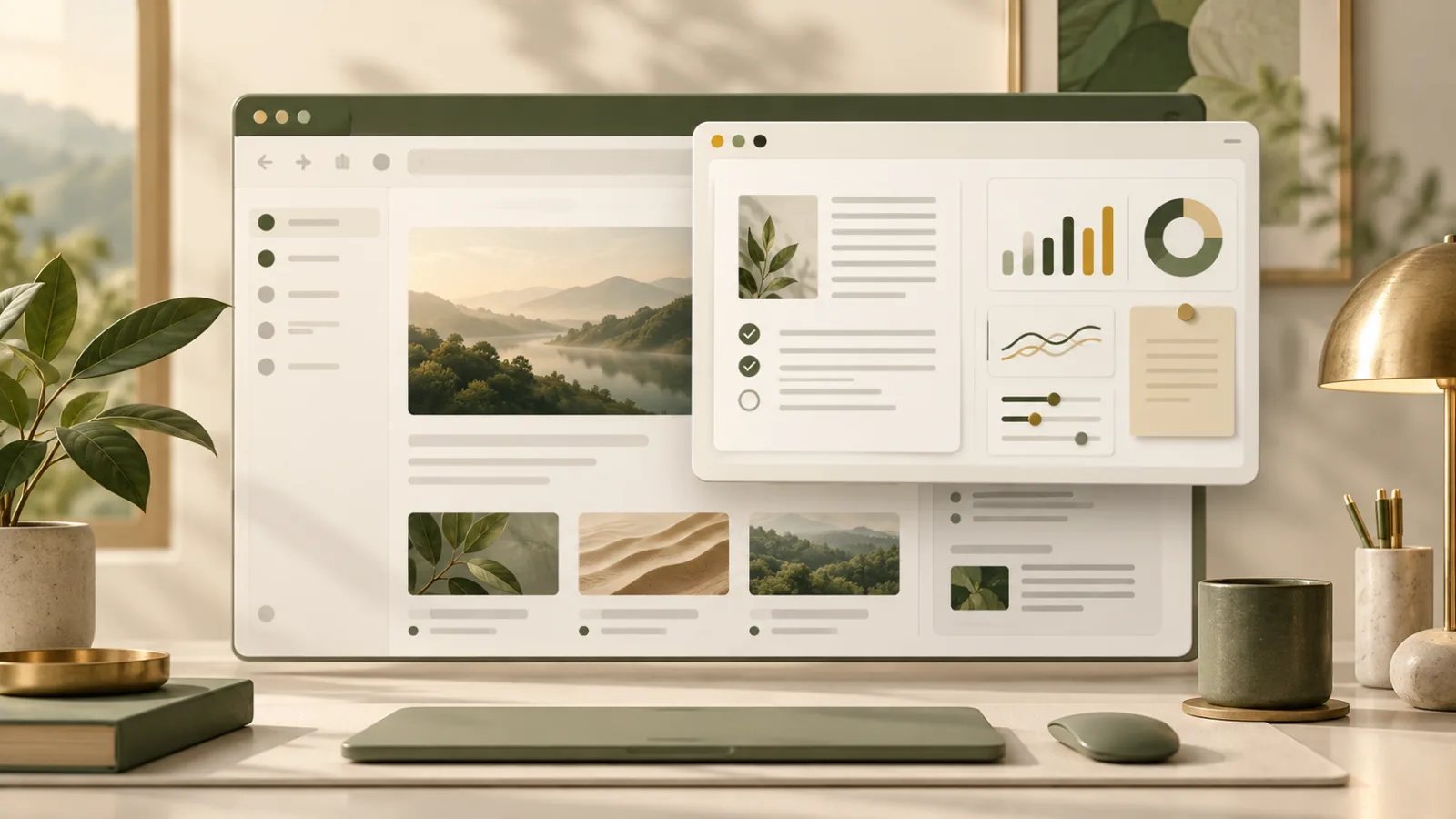
Picture-in-Picture began as a convenient way to keep a video visible while working in another tab. The Document Picture-in-Picture API expands that idea: a website can place ordinary HTML—controls, notes, status information, or a compact workspace—inside a small window that stays above other windows. It is a subtle change, but it gives web applications a new way to remain useful without demanding the whole screen.
The API is especially interesting for tools that support a longer task. A video editor might expose transport controls, a conferencing app could keep participant controls nearby, and a productivity service might show a checklist while the main document remains behind it. Unlike the established video Picture-in-Picture model, this window is not limited to a media element.
What the API changes
A normal browser tab owns a rectangular area inside the browser. Opening another tab or application hides that area. Document Picture-in-Picture creates a separate, always-on-top window and gives the site a new document to populate. The site can add familiar HTML elements, apply styles, and listen for interactions inside that secondary document.
The entry point is window.documentPictureInPicture.requestWindow(). It returns a window whose document starts empty. The application then copies or creates the interface it needs. According to the MDN implementation guide, styles do not automatically follow the content into the new document, so developers commonly copy style sheets or link the same CSS resources.
Why it is more than floating video
Video Picture-in-Picture has a focused purpose: continue playback in a compact player. Document Picture-in-Picture is a general interface surface. It can contain buttons, progress indicators, lists, text, and other interactive elements. The distinction matters because it lets a service design the smallest useful companion for a task rather than shrinking an entire page.
Google’s collection of Document Picture-in-Picture use cases includes video conferencing, productivity tools, and media controls. The strongest designs share one quality: the floating window remains narrow in purpose. It supports the primary activity instead of becoming a second full application competing for attention.
The browser keeps important boundaries
Websites cannot open these windows whenever they choose. A request needs a user action, such as a click, and the feature is restricted to secure HTTPS pages. A site can have only one Document Picture-in-Picture window at a time. The window also cannot be navigated to an arbitrary cross-origin page. These limits reduce the risk of pop-up abuse and misleading interfaces.
The model resembles other attention-sensitive browser features. The Fullscreen API, for example, can create a focused experience, but browsers preserve visible exits and user control. Document Picture-in-Picture should be treated with the same restraint. The fact that an interface can stay above other windows does not mean it should constantly ask for attention.
Good companion windows are intentionally small
A useful floating document answers a simple question: what does the person need while the main page is out of view? For a timer, that may be remaining time and pause controls. For a meeting, it may be mute, camera, and leave buttons. For a tutorial, it could be the current step and a next button. Everything else can remain in the main window.
Developers should design for resizing, keyboard navigation, clear focus states, and readable contrast. Moving an existing element between documents can also affect event handling and application state, so it is often safer to render a dedicated compact component. When the Picture-in-Picture window closes, the main page should restore any controls or state that moved with it.
Support requires progressive enhancement
Document Picture-in-Picture is not available in every browser. A production interface should check for documentPictureInPicture before presenting the feature. If it is absent, the application can retain an in-page panel, use conventional video Picture-in-Picture where appropriate, or let the user open a focused browser window.
This is a good example of progressive enhancement: the core task remains possible everywhere, while supporting browsers gain a more convenient companion view. The same discipline applies to newer interface primitives such as the Popover API. A capability should improve the experience without becoming the only route through it.
A calmer way to remain available
The most thoughtful use of Document Picture-in-Picture is not to make a website impossible to ignore. It is to reduce switching costs while respecting the user’s focus. A compact, predictable window can keep a necessary control close without keeping an entire site in the foreground.
That balance is what makes the API promising. It gives web applications a native-feeling companion surface, while browser rules keep opening, closing, and navigation under user control. Used selectively, it can make long-running tasks feel lighter rather than louder. It also gives product teams a useful reason to simplify controls before asking for more screen space.
Browse with more intention
Noorani brings prayer times, Qibla, tracker blocking, and privacy into one calm desktop browser built for how Muslims live online.