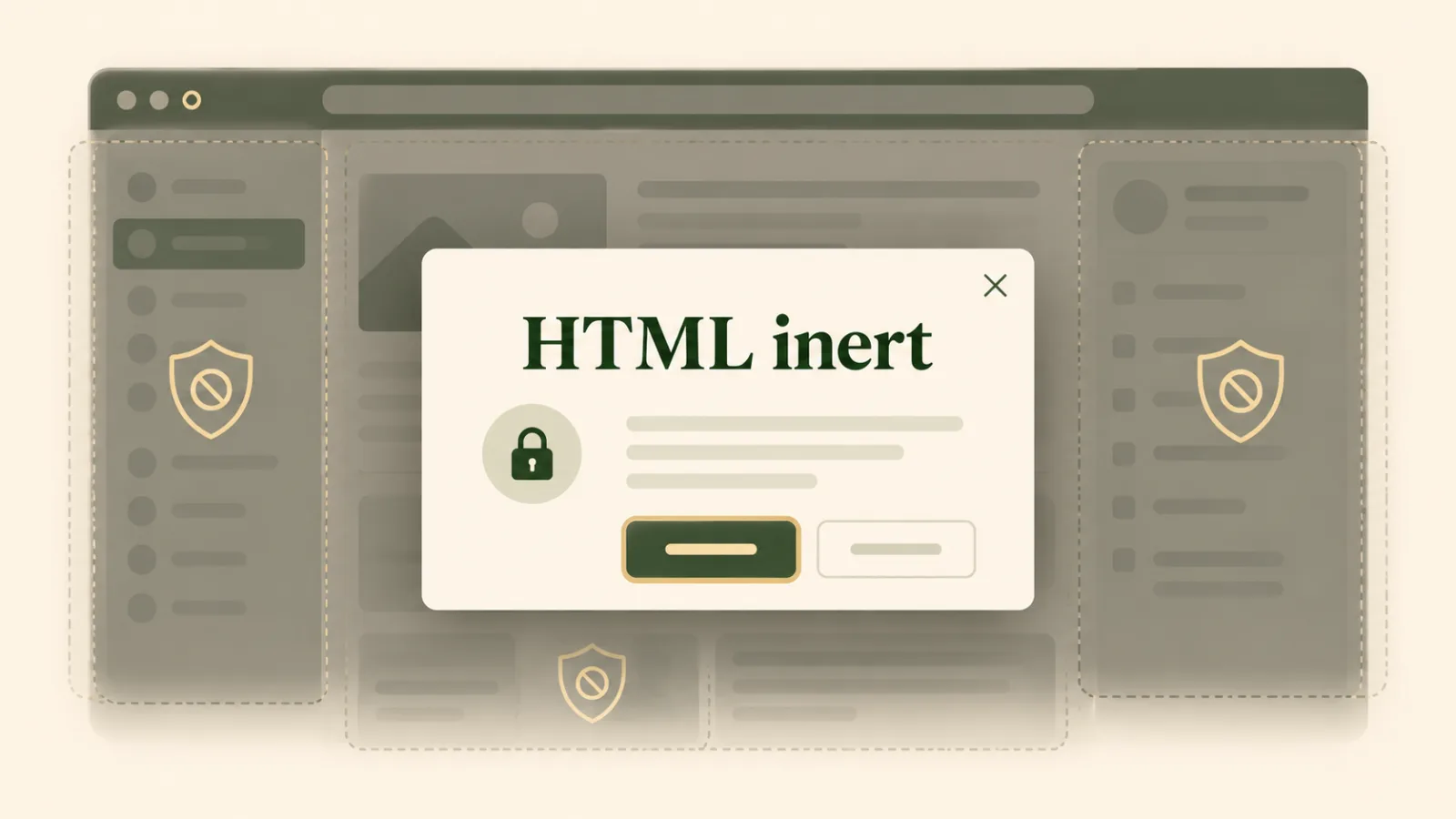
Modern web pages often need to make one region temporarily inactive. A modal dialog may cover the page, a loading overlay may block a form, or a multi-step interface may keep future panels visible but unavailable. Disabling every button and link by hand is fragile. The HTML inert attribute gives developers a browser-native way to remove an entire subtree from interaction.
When a container is inert, users cannot click or focus its interactive descendants, and assistive technologies generally treat that content as unavailable. This makes inert a valuable building block for dialogs, off-canvas menus, carousels, and application shells.
What inert changes
Adding inert to an element affects the element and its descendants. Controls no longer receive focus through the keyboard, programmatic focus attempts are blocked, click events from the user are suppressed, and the subtree is removed from the accessibility tree. Text selection and find-in-page behavior may also be restricted.
<main id="page-content" inert>
  <a href="/account">Account</a>
  <button>Save changes</button>
</main>
In this example, both the link and button become unavailable without changing their individual attributes. Removing inert restores their normal behavior.
Why disabled is not enough
The disabled attribute works only on certain form controls. It does not apply to ordinary links, custom widgets, headings, or contenteditable regions. aria-hidden="true" is also different: it hides content from assistive technology but does not stop mouse or keyboard interaction. Using ARIA alone to make a live interface inactive can create a serious mismatch between what sighted keyboard users and screen-reader users experience.
inert is designed for the whole interaction boundary. It synchronizes pointer behavior, keyboard focus, and accessibility exposure across a subtree.
A practical modal pattern
The native <dialog> element shown with showModal() already makes the rest of the document inert. That browser behavior is one reason native dialogs are safer than a generic absolutely positioned container. If you build a custom overlay, you may need to apply inert to the surrounding page yourself.
const shell = document.querySelector('#app-shell');
const panel = document.querySelector('#settings-panel');

function openPanel() {
  shell.inert = true;
  panel.hidden = false;
  panel.querySelector('button').focus();
}

function closePanel() {
  shell.inert = false;
  panel.hidden = true;
}
Place the overlay outside the inert container. If the panel is a descendant of the element you disable, it becomes inert too. The same structural thinking matters when using the Popover API or building components with Declarative Shadow DOM.
Inert does not style the interface
The attribute changes behavior, but it does not automatically make a region look disabled. Add a clear visual treatment so sighted users understand that the area is temporarily unavailable.
[inert] {
  opacity: .55;
  filter: grayscale(.2);
  user-select: none;
}
Be careful with opacity: low contrast can make content unreadable and may suggest a permanent disabled state. A subtle overlay, muted color, or explanatory status message can communicate the change more clearly.
Focus management still matters
inert prevents focus from entering an inactive region, but it does not decide where focus should go. When opening a modal or panel, move focus to a meaningful control inside it. When closing, return focus to the control that opened it. This preserves the user’s place and makes the interaction understandable without a mouse.
Also test with keyboard navigation from the beginning of the page. A good focus order should remain predictable even when regions switch between active and inert. Our guide to the Keyboard Lock API explains a different, specialized form of keyboard control; do not confuse key capture with focus management.
Common mistakes to avoid
- Making the overlay inert too. Keep active controls outside the subtree you disable.
- Leaving focus behind. Move focus before or immediately after setting the old region inert.
- Using inert as a security boundary. The content remains in the DOM and can still be inspected or changed by scripts.
- Forgetting visual feedback. Behavior and appearance should tell the same story.
- Hiding important status messages. Announcements needed by assistive technology must remain outside the inert region.
Browser support and progressive enhancement
The attribute is broadly available in modern browsers, but production code should still test the specific environments it supports. For exact semantics and compatibility, consult the WHATWG HTML specification and the MDN inert reference.
If supporting older browsers, consider a tested polyfill and preserve a logical DOM structure. Progressive enhancement should never leave users trapped behind an overlay or unable to reach essential controls.
When to use inert
Use inert when a whole region is temporarily outside the current task: background content behind a modal, inactive carousel slides, collapsed application panes, or a form section waiting for a prerequisite. Do not use it merely to hide information visually, and do not apply it permanently to content users need.
The attribute works best as part of a complete interaction model. Combine it with semantic HTML, native dialogs or popovers, visible state changes, careful focus restoration, and clear escape behavior. For a broader foundation, see our practical guide to browser permissions.
A small attribute with a large accessibility benefit
inert replaces a collection of error-prone techniques with one declarative signal. Instead of chasing every focusable descendant, developers can define which part of the interface is active and let the browser enforce that boundary. Used thoughtfully, it reduces focus leaks, prevents accidental clicks, and creates a more coherent experience across mouse, keyboard, and assistive technology.
Browse with calm, clarity, and purpose
Download Noorani Browser for a focused browsing experience with thoughtful privacy tools and useful everyday features.