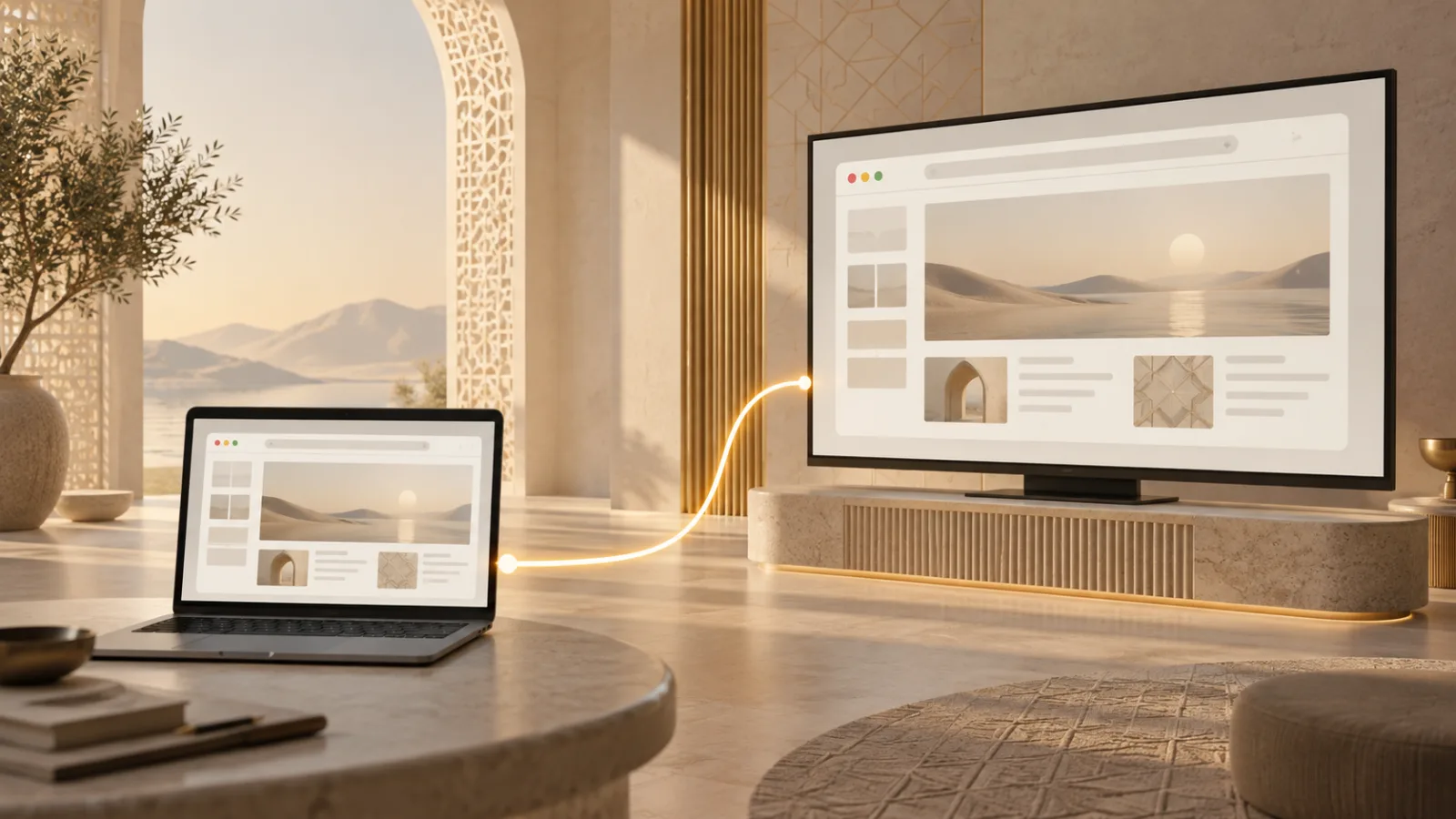
A presentation button can move a webpage from a laptop to a television or projector in seconds. The simple interface hides an important boundary: the page is asking the browser to discover another display, open a second browsing context, and keep two screens in conversation.
The Presentation API is designed for that handoff. It gives web applications a structured way to offer a nearby display without letting any page quietly take over the room.
Presentation API connects a page to another display
The W3C Presentation API specification defines two roles. A controlling page starts or reconnects to a presentation. A receiving page appears on the chosen display. They exchange messages through a dedicated connection while remaining separate browsing contexts.
A slide editor can keep notes and controls on the laptop while showing only the deck on the projector. A photo gallery can leave navigation on the phone and place the image on a television. This is more capable than mirroring because each screen can show a different interface.
The API does not promise one particular transport. A browser may connect through a cable, a local-network receiver, or a platform casting system. MDN marks the Presentation API as experimental and not Baseline, so production products still need fallbacks.
Discovery should not become a room scan
Finding a display may reveal that compatible equipment is nearby. Device names can disclose a home, office, classroom, hotel, or meeting-room context. A label such as “Boardroom TV” is useful to the person choosing it, but it should not become background analytics for the page.
The browser therefore mediates discovery and selection. A website can indicate that it has presentation content, but the user agent owns the chooser. The page should not receive a complete inventory of every screen on the network merely because it created a presentation request.
This resembles the boundary described in our guide to Remote Playback. Both features involve an external device. Remote Playback focuses on sending media; Presentation API can run a fuller web experience on the receiving screen.
Starting a presentation needs a clear action
A well-designed site places presentation control beside the content it affects. The user presses “Present,” sees a browser-controlled list of destinations, and chooses one. A page should not open a receiver because the cursor passed over a button or because a timer expired.
User activation is part of the safety model. It connects a visible gesture to a visible change in the physical environment. That matters when the destination is a large public display rather than another small browser window.
Before presenting confidential work, check the destination name and the room. Close unrelated tabs, disable previews that might expose notes, and test with a harmless slide. The same preparation helps with ordinary browser screen sharing, even though the underlying mechanisms differ.
The receiving screen is still a web page
The receiver is not a raw video surface. It loads a URL and runs web content. Normal origin rules, HTTPS expectations, content security controls, and application authentication still matter.
Developers should treat messages from the other screen as untrusted input. A controller might send a slide number, playback command, or small piece of state. The receiver should validate that data rather than inserting it directly into markup or interpreting it as code.
The presentation URL should also reveal as little as possible. Avoid putting account identifiers, document titles, or access tokens in a URL that may appear in logs or on a shared screen. Use a short-lived session and fetch authorized content after the receiver loads.
Disconnects are part of the normal flow
External displays disappear. Wi-Fi changes, a cable is removed, a television sleeps, or someone closes the presentation. A reliable web app treats those events as ordinary rather than exceptional.
The controller should show whether it is connecting, connected, closed, or terminated. If a connection drops, local controls must remain usable. Reconnection should restore only the necessary session state, not replay an old command or expose a previous document.
Ending the presentation should be equally clear. A visible stop control belongs on the controller, while the receiving screen should return to a neutral state. Do not leave the last private slide frozen on a meeting-room television.
Limited support calls for graceful fallbacks
Browser support remains uneven. Some environments expose only vendor-specific casting tools; others support screen sharing but not the Presentation API. A site should detect the capability rather than assume it exists.
A useful fallback might offer full-screen mode on the current device, a standard screen-sharing path, or a downloadable deck. Our guide to the Fullscreen API explains the narrower case where a page fills its current display without creating a second browsing context.
A disabled presentation button should explain why. “Presentation is not supported in this browser” is better than a silent control. It respects the user and helps support teams distinguish compatibility from network failure.
How to present with less risk
Choose a display only after confirming its name and physical location. Use a dedicated presentation view that excludes notes, notifications, and account details. Stop the session before leaving the room, then confirm that the external screen has cleared.
Developers should minimize discovery data, require an unmistakable gesture, validate cross-screen messages, and build for interruption. The Presentation API is most useful when its power remains legible: one page, one chosen display, and one connection the user can end.
Browse with more intention
Noorani brings prayer times, Qibla, tracker blocking, and privacy into one calm desktop browser built for how Muslims live online.