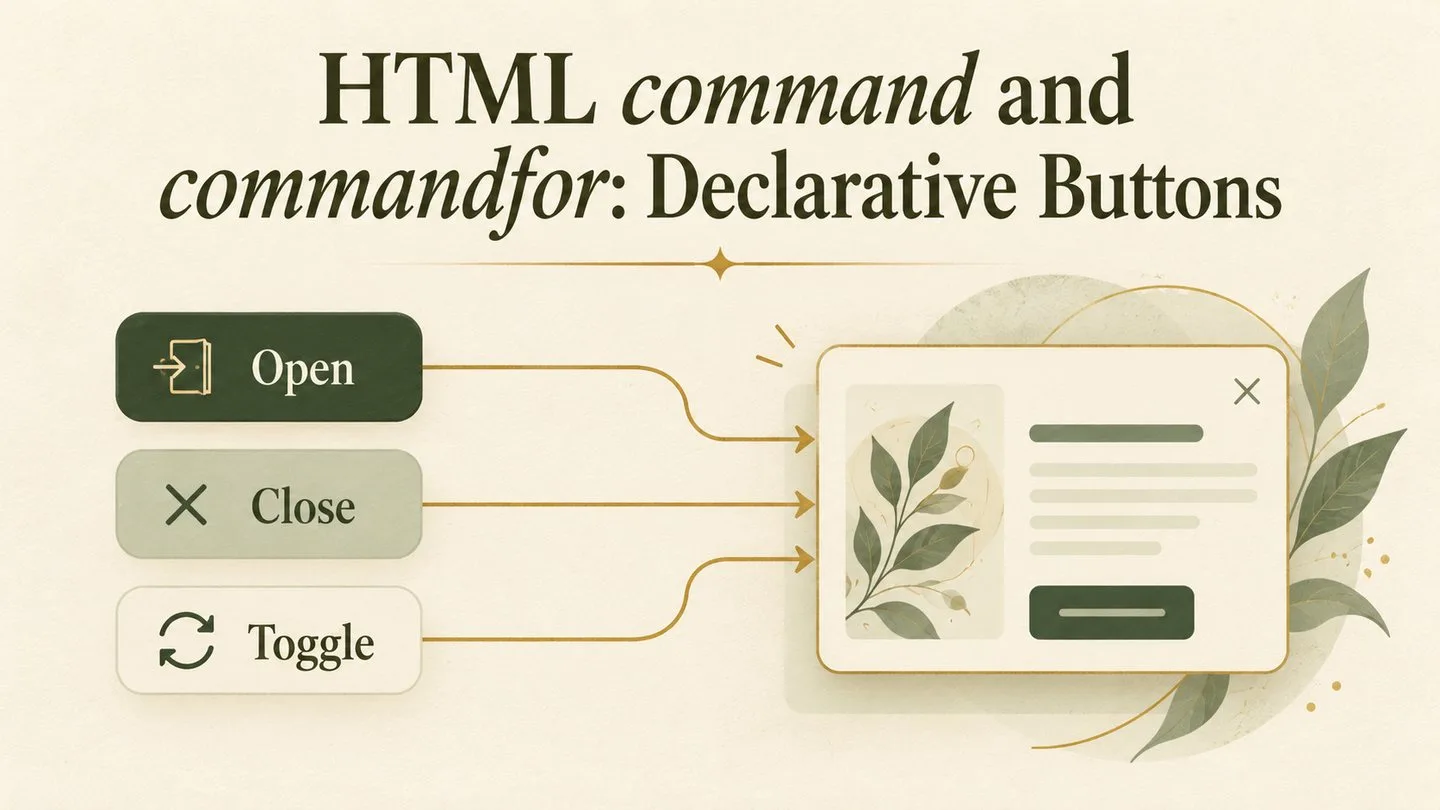
Many web interactions begin with a button and end with another element changing state. A button opens a dialog, dismisses a modal, or toggles a popover. Traditionally, developers connect those pieces with JavaScript event listeners, DOM queries, and a small amount of state-management code. The HTML command and commandfor attributes offer a more direct option: describe the relationship in markup and let the browser perform the supported action.
This approach does not eliminate JavaScript from serious applications. It does, however, make common controls easier to read, maintain, and progressively enhance. For teams already using the Popover API or native dialogs, declarative commands can remove repetitive plumbing while preserving familiar HTML behavior.
What command and commandfor do
The commandfor attribute identifies the element a button controls. Its value points to the target element's id. The command attribute declares the action the browser should perform on that target. In other words, one attribute answers “which element?” and the other answers “what should happen?”
The HTML standard defines this relationship for buttons and supports built-in commands for common interactive elements. That keeps the intent close to the control itself instead of hiding it inside a separate script file. The authoritative details live in the WHATWG HTML specification for form controls, while Chrome's official command and commandfor guide provides practical examples and implementation guidance.
Open and close a dialog declaratively
A settings dialog is a clear example. The opening button can target the dialog with commandfor and request the show-modal action. A button inside the dialog can target the same element with the close command.
<button command="show-modal" commandfor="settings-dialog">
  Open settings
</button>

<dialog id="settings-dialog" closedby="any">
  <h2>Browser settings</h2>
  <p>Choose the options that suit your workflow.</p>
  <button command="close" commandfor="settings-dialog">
    Close
  </button>
</dialog>
The relationship is visible without tracing an event listener. The browser handles the modal opening behavior, and the close button communicates its purpose directly. You still need thoughtful dialog content, an accessible name, sensible focus behavior, and a clear dismissal path. Declarative syntax reduces wiring; it does not replace interaction design. If you want finer control over outside-click or Escape-key dismissal, see our guide to the HTML dialog closedby attribute.
Control popovers with built-in commands
The same pattern works well for lightweight disclosures such as help cards, menus, and small informational panels. A button can use toggle-popover to alternate between the open and closed states of a target popover.
<button command="toggle-popover" commandfor="privacy-help">
  Privacy help
</button>

<aside id="privacy-help" popover>
  <p>Review permissions before allowing a site to use sensitive features.</p>
  <button command="hide-popover" commandfor="privacy-help">
    Done
  </button>
</aside>
Built-in popover commands include actions for showing, hiding, and toggling a popover. This is especially useful when a control and its target are not adjacent in the document. The explicit ID reference makes the connection clear while the platform manages the basic state transition.
Why declarative controls are useful
The first advantage is legibility. A reviewer can inspect the button and immediately see the target and intended action. The second is less repetitive code: there is no need to query the element, register a click handler, and call the matching method for every ordinary control. The third is better alignment with browser primitives. When HTML already understands the interaction, the browser can coordinate it with the native dialog or popover behavior.
Declarative commands can also improve component boundaries. A reusable control does not need a custom listener merely to open a known target. This can reduce setup and cleanup logic in interfaces that create and remove elements dynamically. It also lowers the chance that a refactor changes an ID or event path in one place but not another.
Custom commands for application logic
Not every action has a built-in keyword. Custom command values begin with two hyphens, such as --save-preferences. When invoked, the target receives a command event that application code can handle. This keeps the button-to-target relationship declarative while leaving business-specific work in JavaScript.
<button command="--save-preferences" commandfor="settings-panel">
  Save preferences
</button>
Use custom commands when the target element logically owns the behavior. For a simple navigation link or ordinary form submission, existing HTML elements are usually clearer. The goal is not to express every click as a command; it is to use the platform's vocabulary where it fits.
Accessibility still needs deliberate choices
A declarative relationship does not automatically create good labels or understandable content. Give every button a concise accessible name. Give dialogs a meaningful heading, and make sure keyboard users can reach the controls they need. Do not use visual icons without text or an accessible label. If surrounding content should temporarily stop receiving interaction, understand how the platform handles modality and review the HTML inert attribute rather than building fragile focus traps.
Also consider what happens when a target is missing or an ID is duplicated. Commands depend on a valid relationship, so automated tests should verify those references. Clear markup helps humans, but validation and interaction testing still matter.
Progressive enhancement and feature detection
Browser support may vary across versions, so check the environments your audience uses. Keep the underlying dialog or popover markup valid, then add a small fallback only where necessary. One practical strategy is to test whether the relevant command property exists on a button element before installing older event-listener behavior.
Avoid running both paths at once. If a browser understands the declarative command and your fallback listener also fires, the same action may be performed twice. Feature-detect first, apply one path, and test with keyboard input as well as pointer input.
Common mistakes to avoid
- Using the wrong target ID:
commandformust match the intended element's uniqueid. - Inventing built-in command names: use values defined by the HTML platform or a custom value beginning with two hyphens.
- Skipping labels and focus checks: shorter JavaScript does not excuse an unclear control.
- Adding duplicate fallback handlers: guard legacy code with reliable feature detection.
- Using commands where native links or forms are better: choose the simplest semantic element for the job.
A clearer way to connect controls
command and commandfor make a common interface relationship explicit: this button performs this action on that element. For dialogs and popovers, the result can be less code, clearer reviews, and behavior that stays closer to web-platform standards. Start with a small component, keep accessibility requirements visible, and add JavaScript only for the behavior the platform does not already provide.
Browse with calm, clarity, and purpose
Download Noorani Browser for a focused browsing experience with thoughtful privacy tools and useful everyday features.